
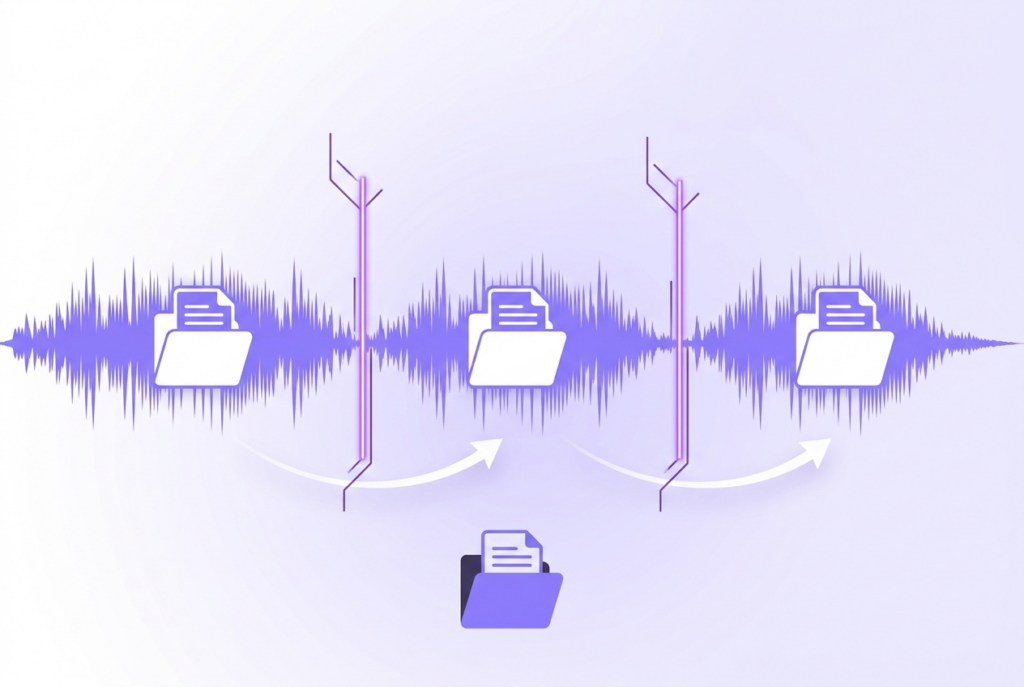
How to Split a Long Audio File into Parts
You can split any audio file — a podcast, lecture, rehearsal recording, or long mix — into separate parts directly in your browser. Three split modes: equal parts, manual waveform markers, or by fixed duration. No upload, no software needed.
Long audio files are hard to navigate, share, and distribute. Splitting them into logical segments makes everything easier — for publishing, for storage, for sharing specific sections with collaborators. sound-goods Audio Splitter offers three different split modes in one browser-based tool, with per-segment preview before downloading.
Three ways to split — choose the right mode
Split your audio file now — free, no upload
Equal parts, manual markers, or by duration. Preview before download.
Open Audio Splitter →Which split mode should you use?
| Mode | Best for | Precision | Speed |
|---|---|---|---|
| Equal Parts | Identical-length chunks, upload limits, structured content | Mathematical — always equal | Fastest |
| Manual Markers | Podcast chapters, song breaks, natural split points | Sample-accurate | Medium |
| By Duration | Automated splitting of long recordings into timed segments | Good (last segment may be shorter) | Fast |
Common use cases
Podcast chapter separation
Record your full episode in one take, then use Manual Markers to place split points at the start of each chapter. Preview each chapter segment to confirm the split is at the right moment, then download the individual chapter files for your podcast host or show notes.
Splitting a lecture or webinar
Use By Duration mode to split a 3-hour lecture into 30-minute segments. Students can download only the sections they need, and the files fit within email attachment limits and most LMS upload restrictions.
Band rehearsal by song
Record a full rehearsal session in one file. Use Manual Markers to place split points between songs — you can see where each song starts by looking at the gaps in the waveform. Each song becomes its own downloadable file for bandmate review.
Getting around file size upload limits
Many platforms cap uploads at 25–100MB. Use By Duration to split until each part is under the limit. Because sound-goods processes locally, there's no restriction on the source file size.
Leave a Reply