
How to Make a Ringtone from Any Song (iPhone & Android)
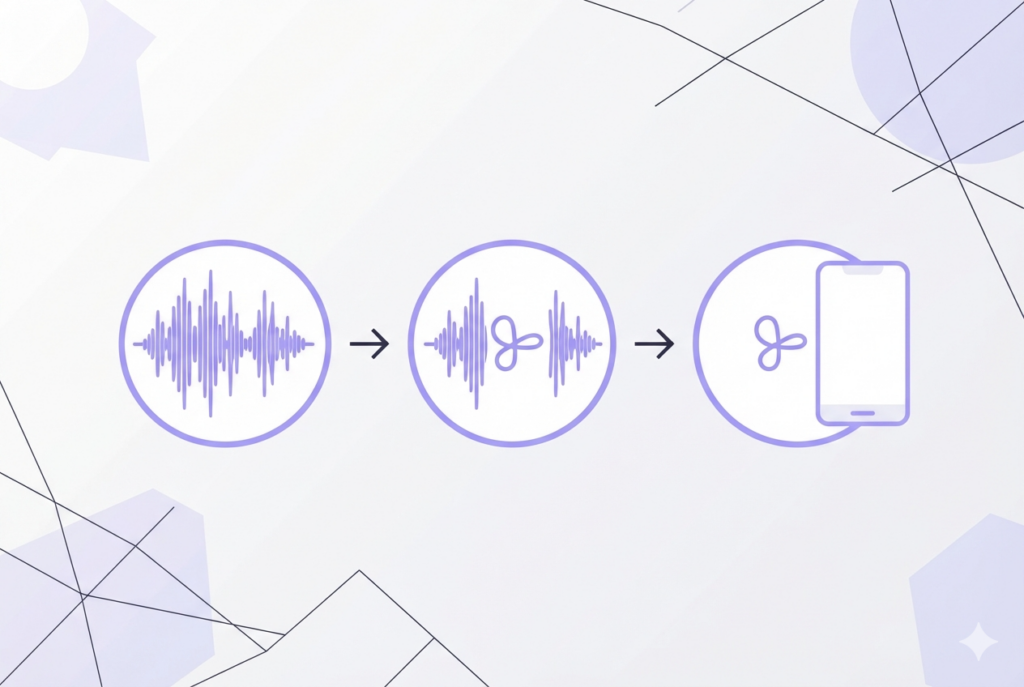
You can turn any audio file into a custom ringtone in under 3 minutes — no app to install, no account required, and your song file never gets uploaded anywhere. Here is exactly how.
sound-goods MP3 Cutter
Free · No upload · Waveform editor · Fade in/out · Instant export
How to make a ringtone — step by step
The entire process takes about 3 minutes. You need the audio file on your computer or phone — MP3, WAV, FLAC, OGG, or M4A all work.
Go to sound-goods.com/mp3-cutter-online/ and drag your audio file onto the waveform editor — or click to browse. The song loads instantly in your browser. Nothing is uploaded to any server.
The waveform shows the full song. Drag the left handle to your ringtone's start point and the right handle to the end. Aim for 20–30 seconds — this is the standard for both iPhone and Android. Use the Zoom slider to zoom in for precise placement. The start and end times update in real time at the bottom.
Click Play to hear exactly what your ringtone will sound like. Then set the Fade In slider to 0.5–1 second so it doesn't start abruptly, and the Fade Out slider to 1–2 seconds for a smooth ending. Play it again to confirm it sounds right.
Click Export MP3. Your 30-second clip downloads in seconds at 192kbps. Now follow the steps below for your phone — Android and iPhone have different processes.
Setting the ringtone on your phone
The process is different depending on your device. Select yours below.
- Transfer the downloaded MP3 to your Android phone — via USB cable, Google Drive, Dropbox, or email.
- On your phone, open the Files app and move the MP3 file to the Ringtones folder. If the folder doesn't exist, create it at the root of internal storage.
- Go to Settings → Sound & vibration → Phone ringtone.
- Your new file will appear in the list. Tap it to set it as your ringtone.
- Optional — set for a specific contact: Open the contact, tap Edit → Ringtone, and select the file.
On Samsung devices, the Ringtones folder may be inside Internal Storage → Ringtones. Some Android versions also let you set any MP3 directly from the Files app by long-pressing the file and selecting "Set as ringtone."
- Transfer the MP3 file to your iPhone via AirDrop, email, iCloud Drive, or any cloud storage app.
- Open the free GarageBand app on your iPhone (download it from the App Store if you don't have it).
- Tap the + button to create a new project. Choose Audio Recorder.
- Tap the Loop icon (top right), go to the Files tab, and select your MP3. Drag it onto the track.
- Tap the down arrow at the top left → My Songs.
- Long-press your project → Share → Ringtone → name it → tap Export.
- Tap Use sound as… → Standard Ringtone to set it immediately.
iPhone requires the M4R format natively, but GarageBand handles the MP3-to-M4R conversion automatically — you don't need to do it manually.
Which part of the song makes the best ringtone?
Your phone typically rings for 5–15 seconds before going to voicemail. That means the first few seconds of your ringtone are the only ones most people will ever hear. Here is what works best:
| Song section | Works as ringtone? | Why |
|---|---|---|
| Chorus | ✅ Best | Instantly recognizable. Maximum melodic energy. Identifies the song in 2 seconds. |
| Main hook / riff | ✅ Excellent | Distinctive. Works well for instrumental or guitar-heavy songs. |
| Verse | ⚠️ Okay | Works if the verse is distinctive. Avoid low-energy verses that take time to build. |
| Intro (slow build) | ❌ Avoid | Sounds like silence at first. You will miss calls while the song builds up. |
| Bridge | ⚠️ Situational | Only if the bridge is the most memorable part of the song. |
Ringtone length: how long should it be?
| Use | Recommended length | Platform limit |
|---|---|---|
| Phone ringtone | 20–30 seconds | iPhone: 40s max · Android: no limit |
| Text / notification tone | 3–5 seconds | iPhone: 30s max |
| Alarm sound | 30–60 seconds | No standard limit |
Tips for a better-sounding ringtone
Start with a clear, strong sound
A ringtone that starts with a quiet note or a slow fade-in means you might miss the first ring. Set your start point at a loud, clear beat — the downbeat of the chorus is ideal.
Test it on the actual device speaker
A song that sounds great through headphones can sound muddy through a tiny phone speaker. After setting the ringtone, call your phone from another number and listen to how it sounds in real life. You may want to choose a section with less bass and more midrange frequencies.
Use the fade out to avoid an abrupt ending
Without a fade out, your ringtone cuts to silence when the timer ends. A 1–2 second fade out sounds much more intentional. The sound-goods Cutter handles this in the export — no extra step needed.
Set different ringtones for different contacts
Both iPhone and Android let you assign unique ringtones to individual contacts. This means you can know who's calling before you even look at the screen — useful for family members, your boss, or anyone else whose calls you want to distinguish instantly.
Keep the file name short and clear
When browsing ringtones in your phone settings, a long filename is hard to read. Rename the MP3 to something short before transferring it — for example chorus-summer.mp3 instead of Artist-Name-Song-Title-2024-Official-Audio_cut.mp3.
Make your ringtone now
Free · No upload · Works on any audio file
Leave a Reply