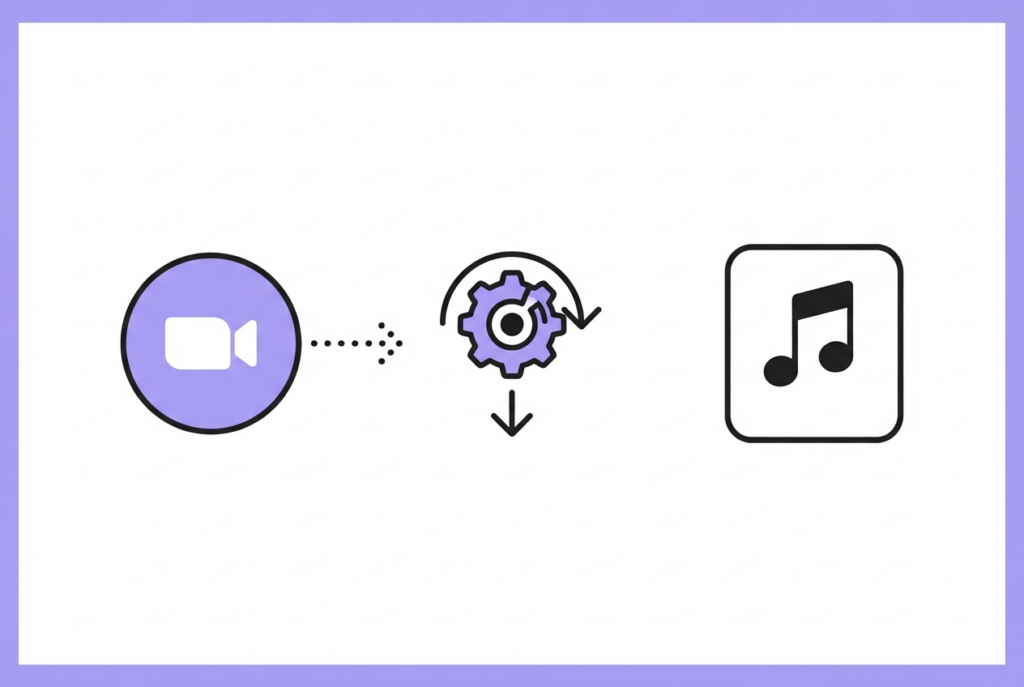
Zoom saves recordings as MP4 files. Converting them to MP3 makes them easier to store, share, and transcribe — and the conversion happens entirely in your browser, so confidential meeting audio never uploads to a third-party server.
Zoom, Google Meet, Microsoft Teams, and Webex all save recordings as MP4 video files. For most purposes — archiving, sharing with a transcription service, storing on limited space devices, or listening on the go — MP3 is a better format. sound-goods MP4 to MP3 Converter extracts the audio locally in your browser: no upload, no third-party server, no account.
How to convert a Zoom recording to MP3
Find your Zoom recording
Zoom saves recordings to Documents / Zoom / [meeting name and date]. The file is named something like GMT20240115-143022_Recording_1920x1080.mp4.
The waveform shows the full meeting audio. Click Play to confirm the right file loaded. For meetings with a long silent intro (before anyone joined), you'll see a flat section at the start.
Trim if needed
Drag the left handle past the silent intro to the actual meeting start. Drag the right handle to trim any silent tail at the end. This reduces file size significantly for long meetings.
Select bitrate
128 kbps for voice-only meetings (saves space, clear speech quality). 192 kbps if the meeting included presentations with audio or background music.
Click Convert to MP3
The MP3 downloads instantly. A 1-hour meeting at 128kbps = ~56 MB (vs. ~700 MB for the original MP4).
Convert your Zoom recording now — no upload, no account
Your meeting audio never leaves your device. 128 or 192kbps export.
Why local processing matters for meeting recordings
Meeting recordings often contain:
Confidential business discussions and strategy
Client or customer conversations
Personal information about participants
Information subject to NDAs or compliance requirements
Uploading a meeting recording to a third-party converter means transmitting all of that over the internet to servers in another jurisdiction, subject to that company's data retention and security practices. sound-goods never transmits your recording — the conversion runs entirely in your browser's JavaScript engine.
File size comparison: MP4 vs. MP3
Meeting length
MP4 (Zoom default)
MP3 128kbps
Size reduction
30 minutes
~350 MB
~28 MB
~92%
1 hour
~700 MB
~56 MB
~92% ★
2 hours
~1.4 GB
~112 MB
~92%
After conversion — transcription options
With a clean MP3, transcription services accept the file more readily than MP4:
Otter.ai — drag the MP3 directly into the import dialog
Rev.com — human transcription, accepts MP3
OpenAI Whisper — open-source local transcription (install on your computer for fully private transcription)
Notion AI — can transcribe audio uploaded to a Notion page
Zoom saves local recordings to Documents / Zoom / [meeting name] on Windows and Mac. The default format is MP4. Cloud recordings can be downloaded from the Zoom web portal.
One re-encoding step occurs, but at 128kbps the quality is more than sufficient for clear speech. Meeting audio rarely exceeds 96kbps in actual content quality anyway, since Zoom itself compresses audio during the call.
No. Your MP4 is decoded in your browser using the Web Audio API. The video frames are discarded locally. Only the audio is encoded and downloaded as MP3. Your recording never leaves your device.
Yes. Google Meet, Teams, and Webex all save recordings as MP4. sound-goods MP4 to MP3 Converter works on any MP4 video file — the source platform doesn't matter.
128kbps for voice-only meetings — clear speech quality with a compact file size. Use 192kbps only if the meeting included audio with music, such as a presentation with background audio or a product demo with sound effects.

Leave a Reply