How to Remove Dead Air and Silence from an Audio Recording
Podcast Workflow5 min read
How to Remove Dead Air and Silence from an Audio Recording
Dead air — long pauses, pre-roll silence, and empty sections — makes recordings feel unprofessional and wastes listener time. Removing it takes under 2 minutes using the waveform editor in your browser.
Dead air is one of the most common problems in podcast recordings, voice notes, interviews, and lecture recordings. A few seconds of silence at the start, a 10-second gap when the speaker loses their thought, a minute of rustling at the end. sound-goods Audio Trimmer lets you remove all of these in a single pass — using its multi-region editor — without exporting multiple times.
Types of dead air and how to remove each one
Type 1 — Silence at the very start or end
This is the simplest case. The waveform shows a flat section before the audio content begins or after it ends.
Look at the waveform. Drag the left handle to the first moment of meaningful amplitude (where the waveform rises from flat). Drag the right handle to the last peak.
Export
Click Export MP3. The file starts and ends exactly at the handles — all pre/post silence is gone.
Type 2 — Long pauses in the middle
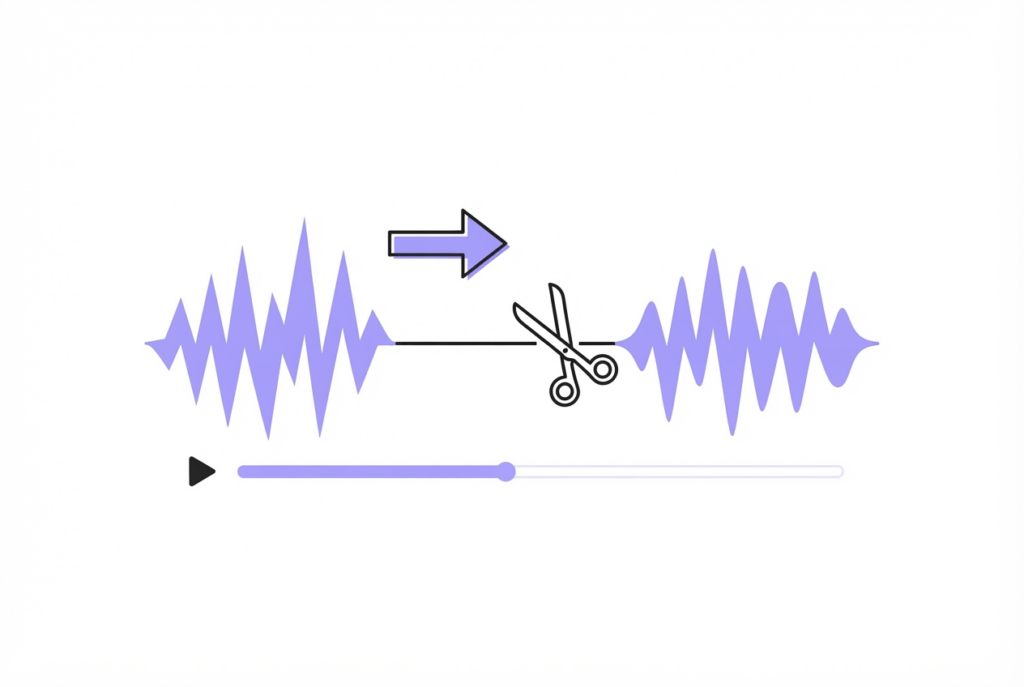
These appear as flat sections mid-waveform. Use the multi-region remove feature:
Find the pause on the waveform
Zoom in (up to 20×) to identify where the flat section starts and ends precisely.
Drag handles to the pause
Position the left handle at the start of the pause, right handle at the end.
Click + Mark as REMOVE
The pause section turns red. Repeat for every long pause in the recording.
Export — all gaps removed in one pass
Click Export MP3. The tool stitches all the non-silence sections together into one continuous file. All remove zones are skipped simultaneously.
Remove dead air from your recording now — free, no upload
Multi-region editor — mark all silences at once, export once.
Silence appears as a perfectly flat line on the waveform — amplitude of zero. Long pauses (more than 2 seconds) are very visible even at 1× zoom as flat horizontal sections between waveform peaks. At 5–10× zoom, you can see the exact sample where the audio drops to near-zero and where it rises again — allowing millisecond-precise removal.
Audacity alternative for automated silence removal: Audacity has a Truncate Silence effect (Effect → Special → Truncate Silence) that automatically finds and shortens all silences above a threshold duration. It's faster for recordings with many small silences but requires installing Audacity. For manual control of which silences to remove, sound-goods gives you more precision.
Tips for a professional-sounding result
Don't remove all pauses — natural pauses between sentences give listeners time to process. Remove only pauses that are noticeably long (2+ seconds in conversation).
Leave a tiny bit of room tone — cutting to exactly zero samples at each edit point can sometimes cause a click. Leave 50–100ms of room tone around each cut.
Add a fade in if needed — if your recording starts abruptly after removing the pre-roll silence, add a 0.3-second fade in to soften the entry.
Use Loop preview to check transitions — enable Loop on the selection around a removed section to hear whether the transition sounds natural or jumpy.
Dead air refers to sections of a recording with no meaningful audio — long pauses, pre-roll silence before the host starts speaking, post-roll silence after they finish, or gaps in conversation. It makes episodes feel unprofessional and slow.
Use sound-goods Audio Trimmer: drag the left handle past the pre-roll silence to where content begins. For mid-recording pauses, select each pause with the handles and click '+ Mark as REMOVE'. Export once — all marked zones are skipped and remaining audio stitched together.
For conversational podcasts, pauses over 2 seconds are usually worth removing. For solo narration, 3+ seconds. Natural conversational pauses of 0.5–1.5 seconds should be left in — they give listeners time to process and make the content feel natural.
Yes. sound-goods Audio Trimmer's multi-region remove feature lets you mark as many remove zones as needed. All are removed in a single export — no need to export after each individual silence removal.
No. All processing runs locally in your browser using the Web Audio API. Your recording never leaves your device.

Leave a Reply