How to Split a Podcast Recording into Separate Episodes
Podcast Workflow5 min read
How to Split a Podcast Recording into Separate Episodes
Recording multiple episodes in one session and splitting them afterward is faster than recording separately. Here's how to place split points manually on the waveform and export each episode as an individual file.
Many podcasters batch-record multiple episodes in one session for efficiency — then split them apart in post-production. sound-goods Audio Splitter lets you place split points visually on the waveform and download each episode as a separate file, all in your browser without uploading anything.
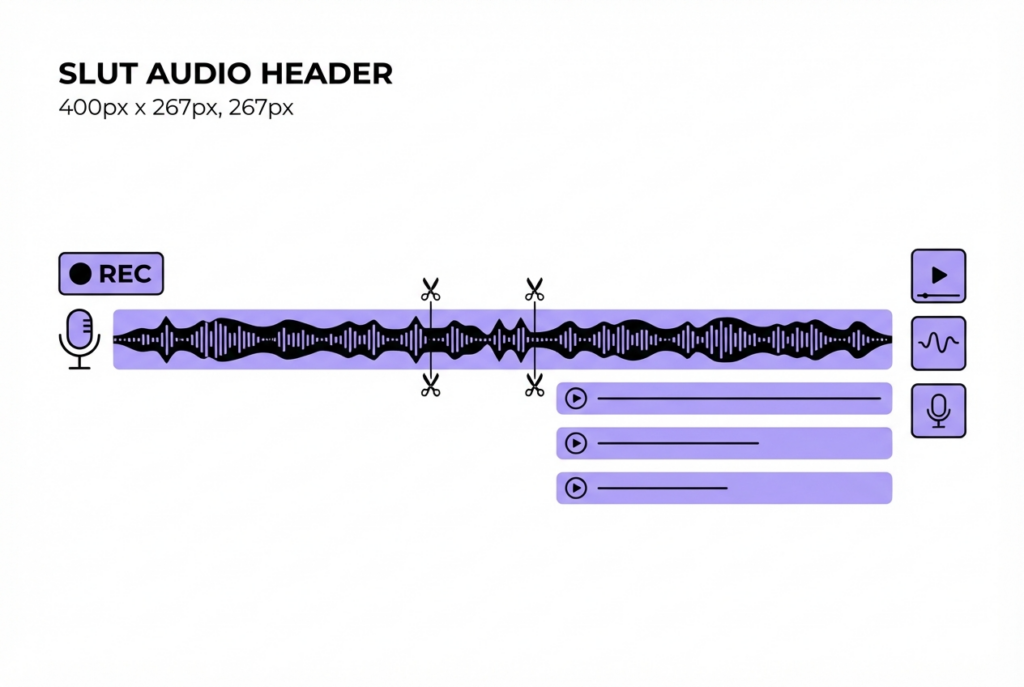
Click Manual Markers — this lets you click anywhere on the waveform to place a split point. This is the correct mode for podcast splitting because episode boundaries are at specific moments, not evenly spaced.
Find episode boundaries on the waveform
Zoom in to find where one episode ends and the next begins. Look for: a flat section (silence between sessions), a sudden volume change, or a recognizable pattern like a verbal cue ('that wraps up episode 12...'). Click the waveform at each boundary to place a marker.
Adjust markers by dragging
Drag any marker chip left or right to fine-tune its position. Click a marker's × to remove it if misplaced.
Preview each segment
After placing markers, click Split Audio. Each segment shows a mini waveform and Play button — preview to confirm each episode starts and ends at the right moment.
Download each episode
Download episodes individually or batch-download all. Files are named with sequential numbers: recording_part01.mp3, recording_part02.mp3, etc.
Split your podcast recording now — free, no upload
The waveform makes finding boundaries much easier than listening through:
Silence between episodes — appears as a flat or near-flat section. Even a few seconds of silence between sessions shows clearly on the waveform.
Intro/outro music — music segments have a characteristic dense waveform shape that looks different from speech. Find the end of one outro and the start of the next intro.
Volume spikes — if you clapped or made a noise as a marker cue when recording, the spike shows clearly on the waveform. Classic production technique.
Recording tip: When batch-recording multiple episodes, clap once between each episode as you record. The clap creates a visible spike on the waveform that makes split points trivial to find later — no need to listen through the full recording.
After downloading split episodes, rename them before uploading to your podcast host. Standard naming convention: ShowName_EP012_EpisodeTitle.mp3. Add ID3 metadata tags (episode title, number, description) using a free tag editor like Mp3tag (Windows) or Kid3 (cross-platform) before uploading.
Frequently asked questions
Use sound-goods Audio Splitter's Manual Markers mode. Click the waveform at each episode boundary to place a marker, preview each segment, and download them as individual files.
Look for flat sections (silence between episodes), dense music waveform patterns (intro/outro music), or amplitude spikes (a deliberate clap cue recorded between episodes).
Yes. After splitting, each segment shows a mini waveform and Play button. Click Play to confirm each episode starts and ends at the correct moment before downloading.
No. Because nothing is uploaded, the only limit is your device's RAM. Long multi-hour recordings split without any server-side restriction.
Manual Markers mode supports as many markers as you need — there's no hard limit. Equal Parts mode supports up to 20 segments, but Manual Markers is the right mode for podcast splitting anyway.

Leave a Reply